
 SIGN UP FOR STELLAR MAIL
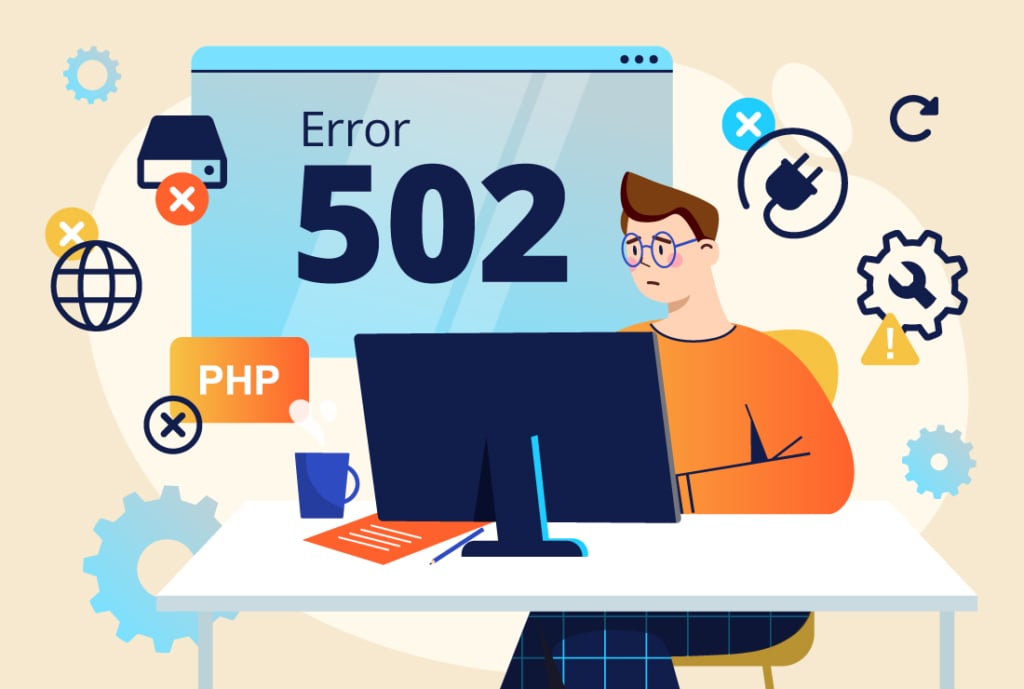
You pull up your website, expecting everything to work as usual, and instead you’re greeted with a message: “502 Bad Gateway.”
Not exactly what you wanted to see.
A 502 error means something has gone wrong with the communication between servers. Sometimes it’s a temporary issue that clears up on its own. Other times, it takes a little troubleshooting to figure out what’s happening.
Let’s look at what might be causing the problem, a few things you can check yourself, and when it’s time to call in some help.
What is a 502 Bad Gateway error?
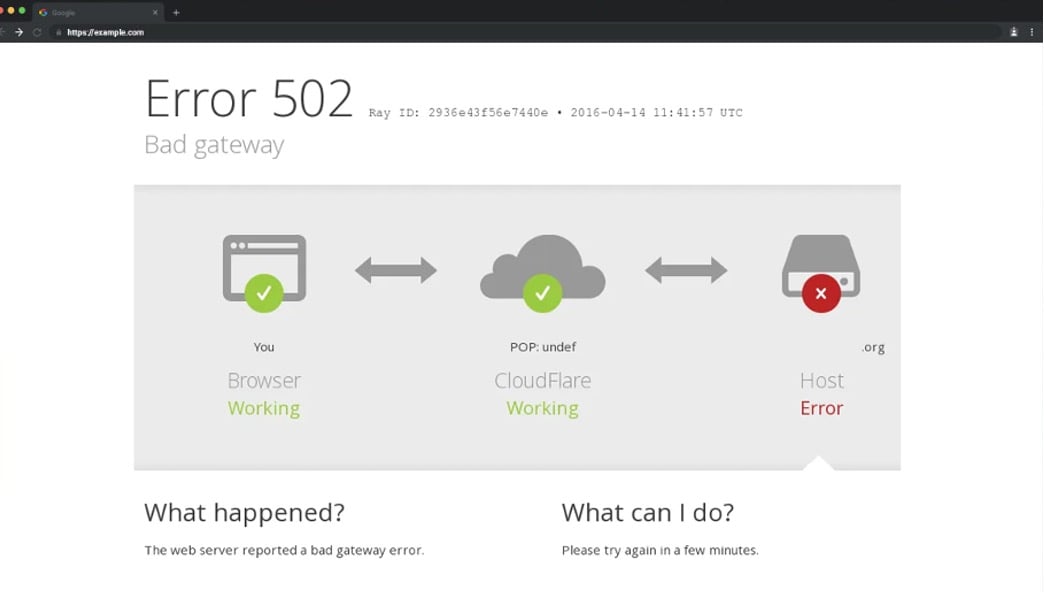
A 502 Bad Gateway error occurs when a server acting as a gateway or proxy receives an invalid response from another server.
In simpler terms, different systems need to communicate to deliver your website to visitors. When that communication breaks down, you may see a 502 error instead of the page you were expecting.
Depending on your hosting provider and website configuration, the error might appear as:
- “502 Bad Gateway”
- “Error 502”
- “Cloudflare 502 Bad Gateway”
- A custom error page from your hosting provider
The error tells us something isn’t communicating correctly, but it doesn’t tell us exactly what’s causing the problem.
What should you do when your website shows a 502 error?
There are a few things worth checking before you call for help:
- Refresh the page. Sometimes a 502 error is temporary. Wait a minute or two, refresh the page, and see if the problem has cleared up.
- See if other people are experiencing the same issue. Try opening your website in a private browser window or on another device or network. You can also use an online website availability checker to see if it’s working for other visitors.
- Check your hosting provider’s status. Hosting companies occasionally experience outages or service interruptions. If your provider is reporting a problem, you may just need to wait for them to resolve it.
- Think about what recently changed. Did someone update a plugin, make changes to the website, or move it to a different hosting environment? That information could help narrow down the cause.
If the error keeps happening, it’s time to contact your hosting provider or development team. They can investigate server settings, error logs, and other potential causes that aren’t easily checked from your browser.
What causes 502 errors on WordPress websites?
One thing we’ve learned from troubleshooting WordPress websites over the years is that the timing of an error can be just as helpful as the error message itself. A website might work perfectly well most of the day but run into problems when traffic increases, a backup runs, or a plugin starts a resource-intensive task. Looking for those patterns can help narrow down what’s actually going wrong.
Hosting server overload or slow response
Every hosting environment has limits on the resources available to process website requests. If your server is struggling to keep up with traffic or other resource-intensive activities, it may stop responding properly and trigger a 502 error.
This can happen when a website has outgrown its hosting environment or when server resources aren’t configured appropriately for its needs.
Plugin conflicts or updates
Plugins add functionality to WordPress, but they can also introduce problems. A poorly coded plugin, an outdated extension, or a compatibility issue following an update can cause processes to fail or consume too many server resources.
If 502 errors start appearing shortly after a plugin update, that’s one of the first places your development team may want to investigate.
PHP configuration and server limits
WordPress relies on PHP, a programming language that handles much of what happens behind the scenes on your website.
When too many processes are running at once, or a task takes longer than the server allows, requests can fail and trigger a 502 error.
If you’re unfamiliar with PHP, we’ve also covered why keeping your WordPress site’s PHP version current matters.
Theme or custom code problems
Not all WordPress performance issues come from plugins. A theme or custom feature may contain inefficient code, resource-intensive database queries, or other problems that interfere with how your website operates.
Problems are more likely when custom code hasn’t been maintained or tested as WordPress and other components have evolved.
CDN, firewall, or proxy issues
Many websites use services such as Cloudflare to improve performance, security, and reliability. These services sit between visitors and your hosting server, and communication problems between those systems can sometimes trigger a 502 error.
Finding the cause may require checking both the hosting server and the services handling traffic in front of it.
Can a 502 error hurt your business or SEO?
When your website isn’t working, visitors may leave before contacting you, customers may be unable to complete purchases, and someone encountering your business for the first time may come away with a less-than-great impression.
There can also be SEO consequences. According to Google’s documentation on server errors, repeated 502 errors can slow crawling and eventually cause affected pages to disappear from its index. A brief outage usually isn’t cause for concern, but persistent errors are worth investigating.
When should you contact your hosting provider or developer?
If you’ve tried the basic troubleshooting steps and your website still isn’t working, you’ll likely need some professional help.
Your hosting provider can investigate server availability and resource limitations, while your WordPress development team can look more closely at plugins, themes, custom code, and how your website interacts with its hosting environment. Depending on the issue, resolving it may require both teams working together.
What to share with your support team
When you contact your hosting provider or development team, sharing a few details can help them narrow down the problem faster:
- A screenshot of the error, including the website address.
- When you first noticed the problem.
- Whether it happens consistently or just occasionally.
- Whether the error affects the entire website or only specific pages.
- Any recent website updates or changes you’re aware of.
- What actions were you taking when the error appeared, if any? Are you able to replicate the error by taking those same actions again?
You don’t need to diagnose the problem yourself, but the more information you can share, the easier it may be for your support team to narrow down the cause. For more tips, see our guide to writing a WordPress support request that gets faster results.
How can you prevent 502 errors on your WordPress website?
Even a well-maintained website can occasionally experience server errors, but there are steps you can take to reduce the risk of recurring problems:
- Choose the right hosting for your website. A small informational website and a busy WooCommerce store have very different hosting requirements. Your hosting environment should have the resources to support your website’s traffic, functionality, and performance needs.
- Keep WordPress and its plugins updated. Regular updates help address security vulnerabilities, compatibility issues, and software bugs. Updates should also be handled carefully, with reliable backups and testing when appropriate.
- Be selective about plugins. Every plugin introduces additional code to your website. Choose reputable, actively maintained plugins, and periodically review whether you still need everything that’s installed.
- Monitor website availability and performance. Uptime monitoring can alert you when your website goes down, while performance monitoring can help identify recurring issues or resource limitations that might otherwise go unnoticed.
- Have a website maintenance plan. Regular updates, backups, monitoring, and access to experienced technical support can help you catch potential issues earlier and resolve problems more efficiently when they occur.
Looking for ongoing WordPress support?
At Stellaractive, we help businesses keep their WordPress websites running smoothly through regular maintenance, monitoring, and experienced technical support. When issues arise, our development team can investigate the cause and work with hosting providers to find a solution.
If you’re looking for a team to help manage and maintain your WordPress website, learn more about our WordPress hosting and maintenance services.